Cinnamon Navigation Guide
How to Navigate the Cinnamon Platform
Cinnamon offers a wide range of features. This guide provides a navigation overview to help you quickly locate the tools and functionality you need.
Main Header
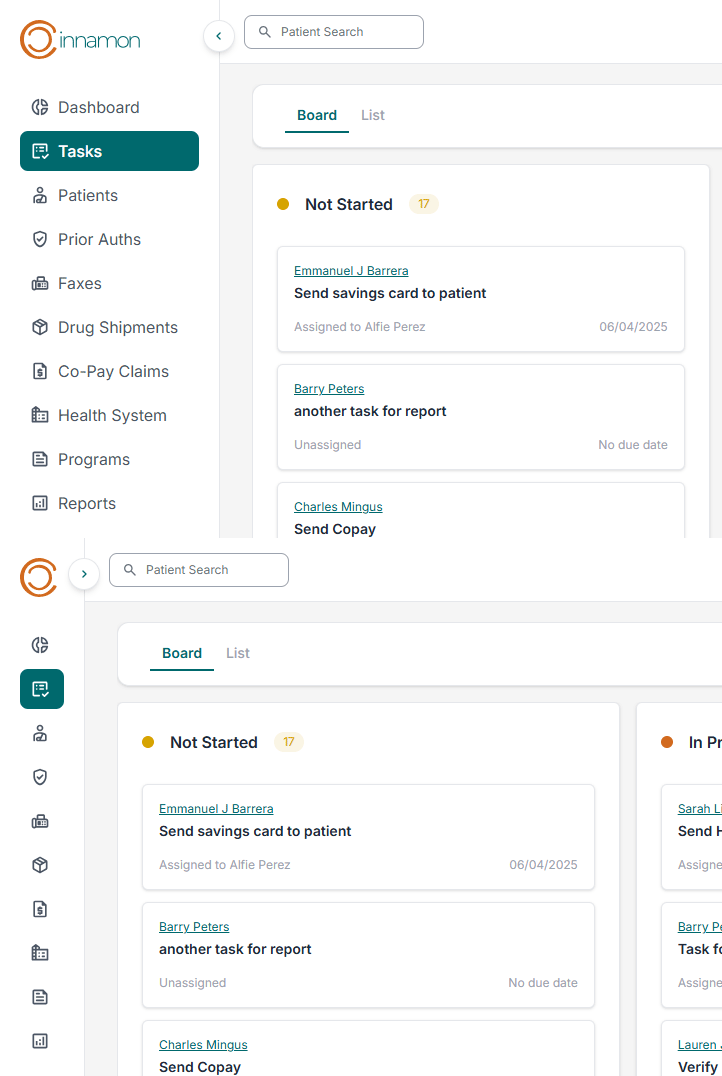
On the main header, we have 6 tools. The Cinnamon logo, the side bar collapse button, the Patient Search, the Help Center, the Notifications bell, and the “My Account” button.

Cinnamon Logo:
At any time, you can return to the starting point by clicking the Cinnamon logo. This will take you back to the Task Dashboard, just like the view you see upon logging in.
Side Bar Collapse Button:
To free up space on your screen, you can use the Side Bar Collapse button to minimize the sidebar for a more compact view.
Patient Search:
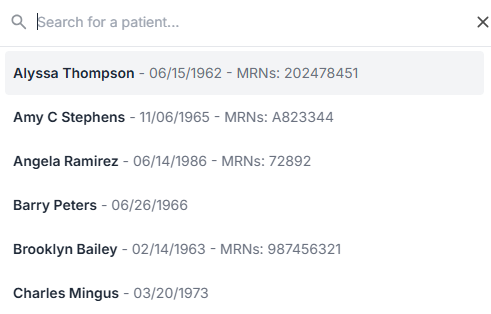
The Patient Search feature allows users to look up patients by Name or by MRN. Clicking into the search box opens a new window, enabling you to review search results before navigating away from your current screen.
Help Center:
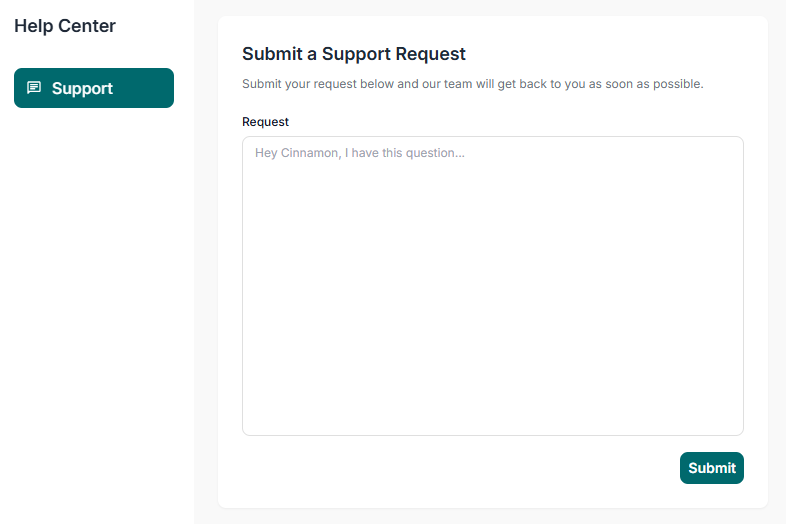
The Help Center offers the most efficient way to contact Support. Simply enter your question or issue in the designated field and click 'Submit'. Your inquiry will be sent directly to our Support Team via email.
Notification Bell:
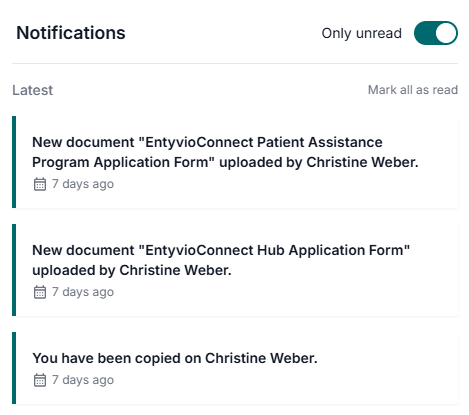
The Notification Bell serves as a centralized location for all your alerts and updates.
For more information on Notifications, please check out the Notifications section of our new user guide: Learning Cinnamon:Notifications
My Account:
Clicking the 'My Account' button presents two options. The first directs you to your account details, where you can view key information related to your health system (health system name, email domain, default source system, and fax numbers). You also have the ability to store your signature here. The second option allows you to log out of the platform
Side Bar Navigation
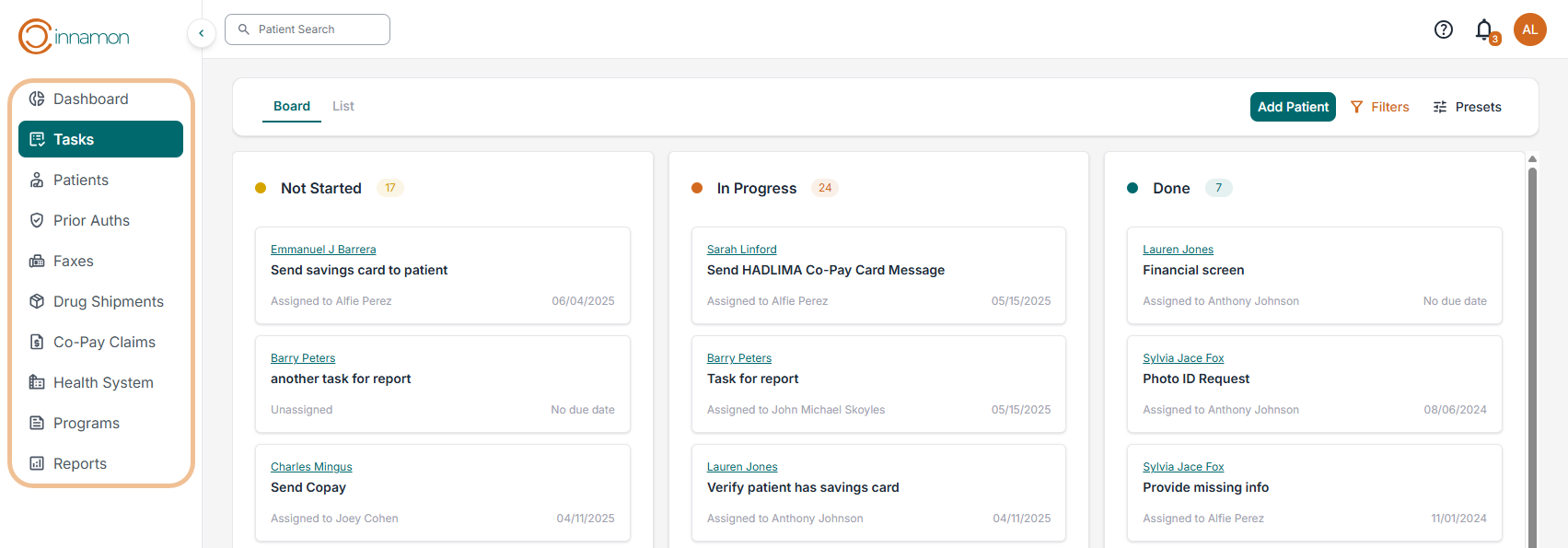
The sidebar is your gateway to all the various dashboards that live within Cinnamon. The 10 tabs include the manager Dashboard, Tasks, Patients, Faxes, Drug Shipments, Co-Pay Claims, Health System, Programs, and Reports.
Manager Dashboard:
The Manager Dashboard provides a set of tools designed to help managers track and assess Cinnamon platform usage. It includes three primary tabs: User Activity, Graphs, and Notes.
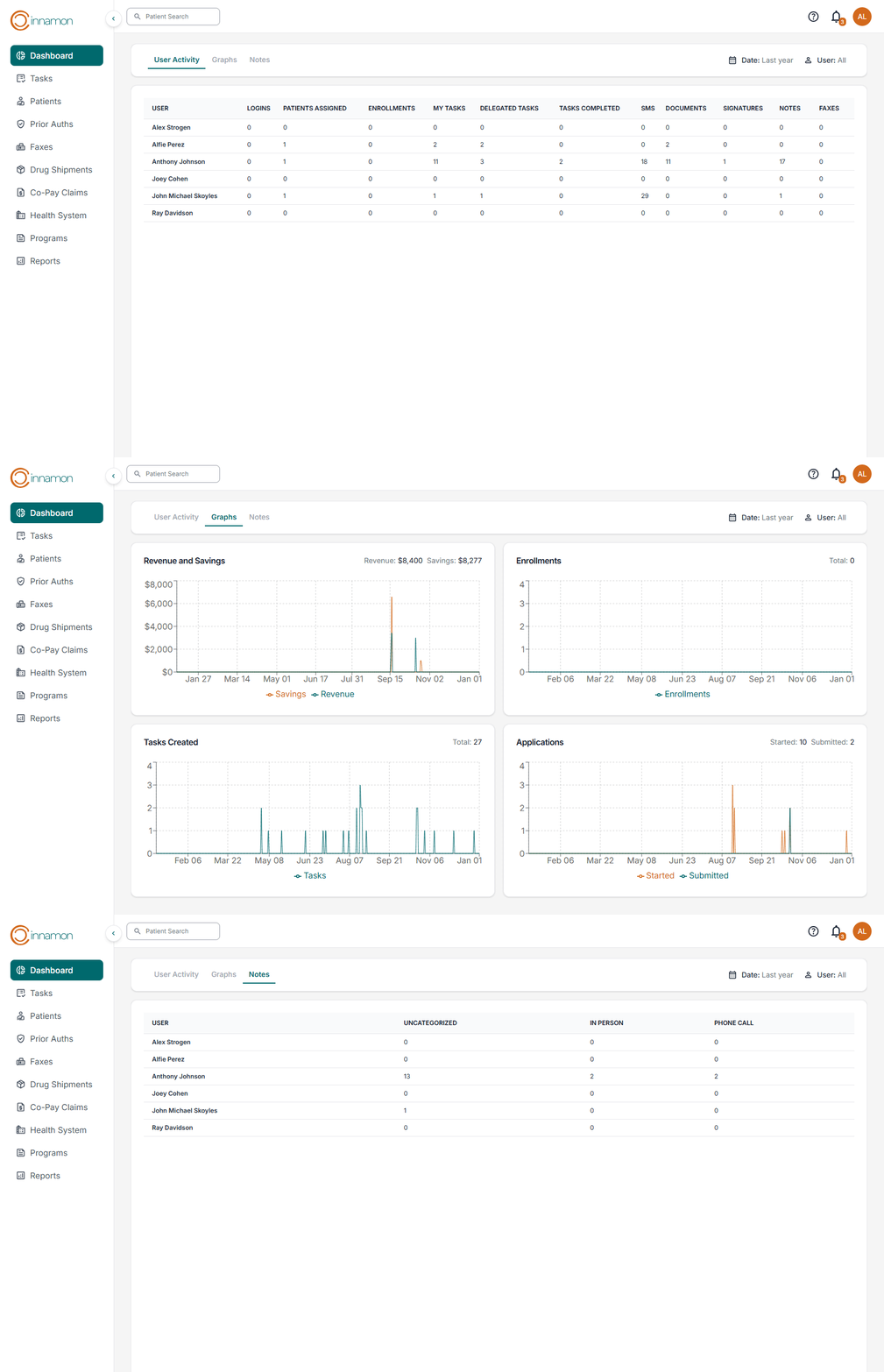
The User Activity tab displays user metrics such as logins, patient assignment, enrollments, tasks, and more.
The Graphs tab provides visual representations of key metrics, including Revenue and Savings reports, Enrollments, Tasks Created, and Applications displayed in chart format. These charts can be filtered by date range and by individual user to support more targeted analysis.
The Notes tab tracks noted for each user on the team.
Tasks Dashboard:
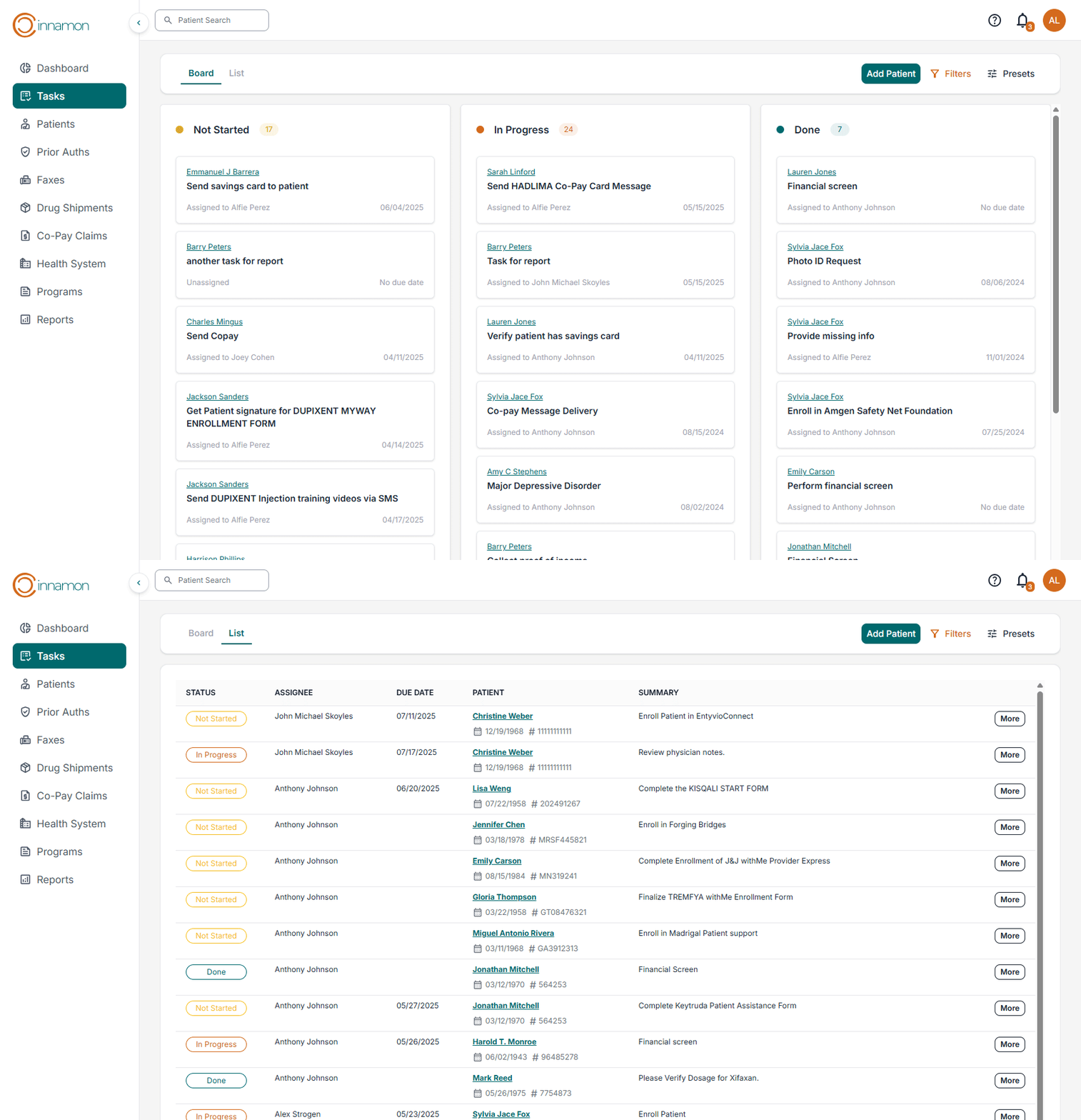
The Task Dashboard displays all team tasks in two formats: Board View and List View.
- Board View organizes tasks into three columns based on their status, providing a visual workflow using task cards.
- List View presents the same task information in a table format, offering a more structured, grid-based layout for easier sorting and scanning.
For more information about Tasks, please check out the Tasks section of our New User Guide:
Learning Cinnamon:Tasks
Patients Dashboard:
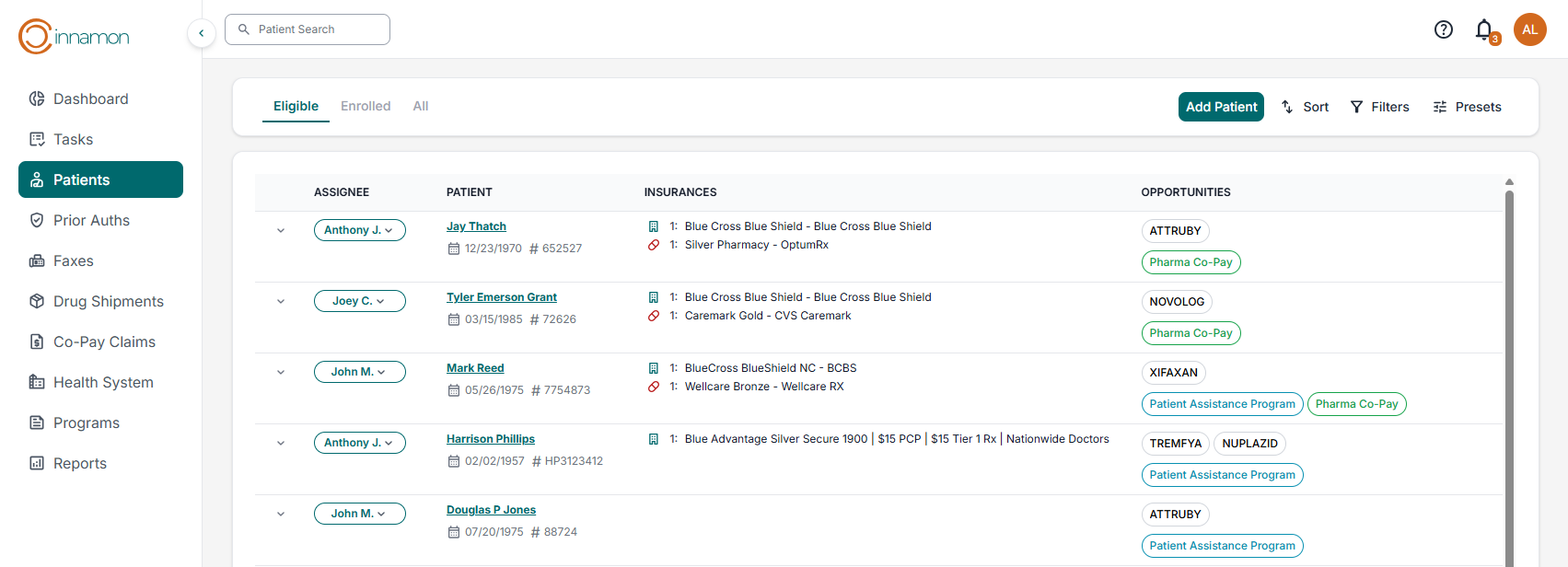
The Patient Dashboard displays patient lists in three different worklists: Eligible, Enrolled, All. For more information regarding the Patient Dashboard, please check out the Patients section of our New User Guide: Learning Cinnamon:Patients
Faxes Dashboard:
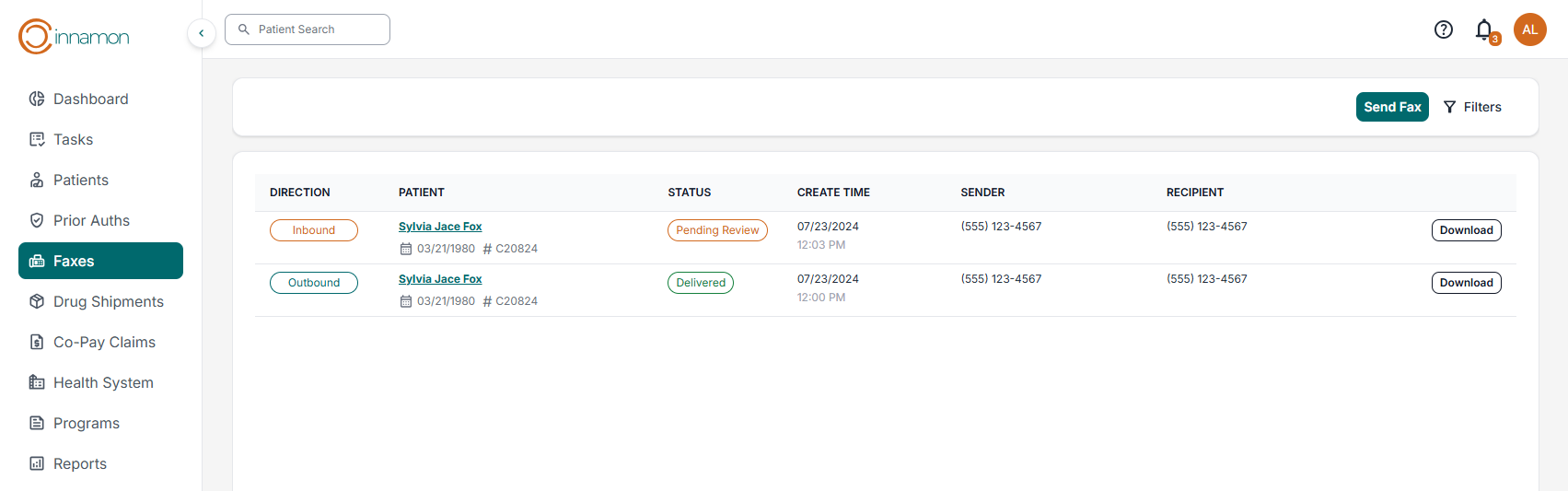
The Faxes Dashboard displays all the inbound and outbound faxes sent and received by your team. For more info about Faxes, check out this article on Faxes: Learning Cinnamon:Faxes
Drug Shipments Dashboard:
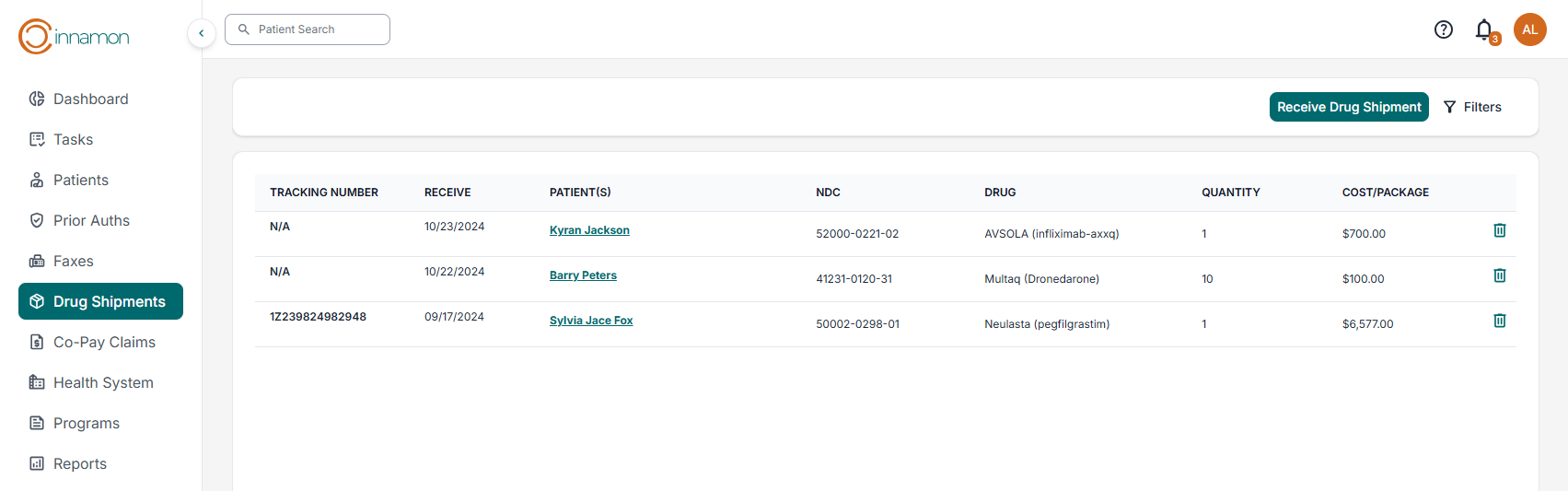
The Drug Shipment dashboard displays all drug shipments coming in through Cinnamon. You can also request a new drug shipment from this dashboard. For more details about the Drug Shipment dashboard, check out this article: Learning Cinnamon:Drug Shipments
Co-Pay Claims Dashboard:
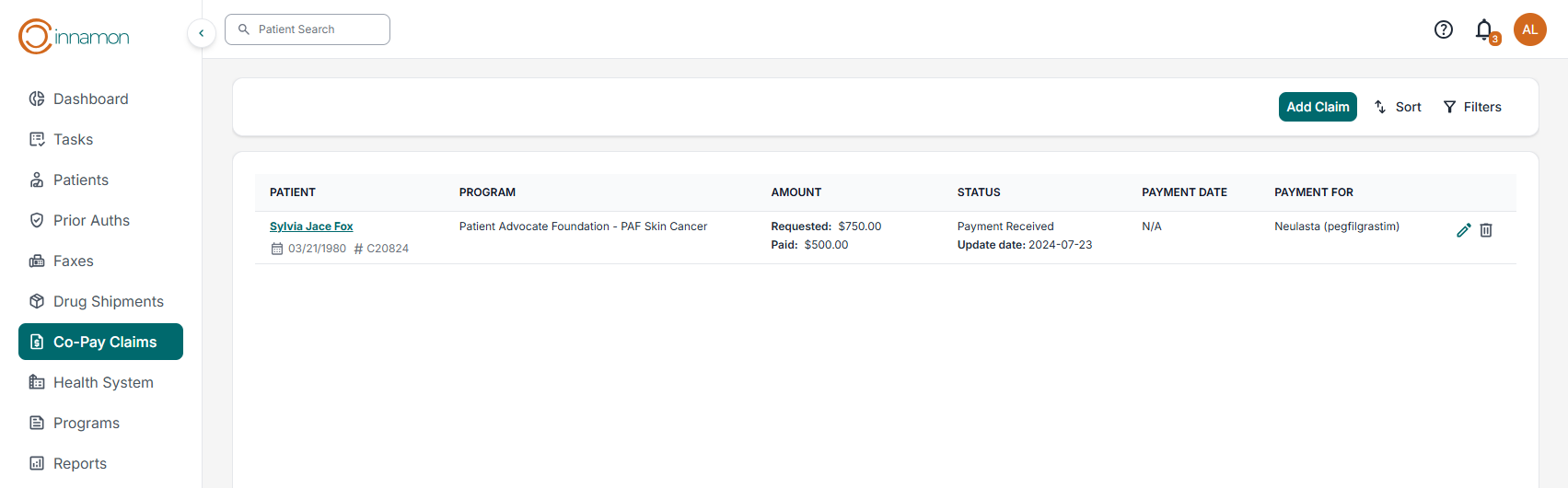
The Co-Pay Claims Dashboard provides a centralized table view of all claims within the application. Users have the ability to create new claims, update existing ones, and delete claims as needed. To view more info about the Co-Pay Claims dashboard, check out this article: Learning Cinnamon
Health System Dashboard:
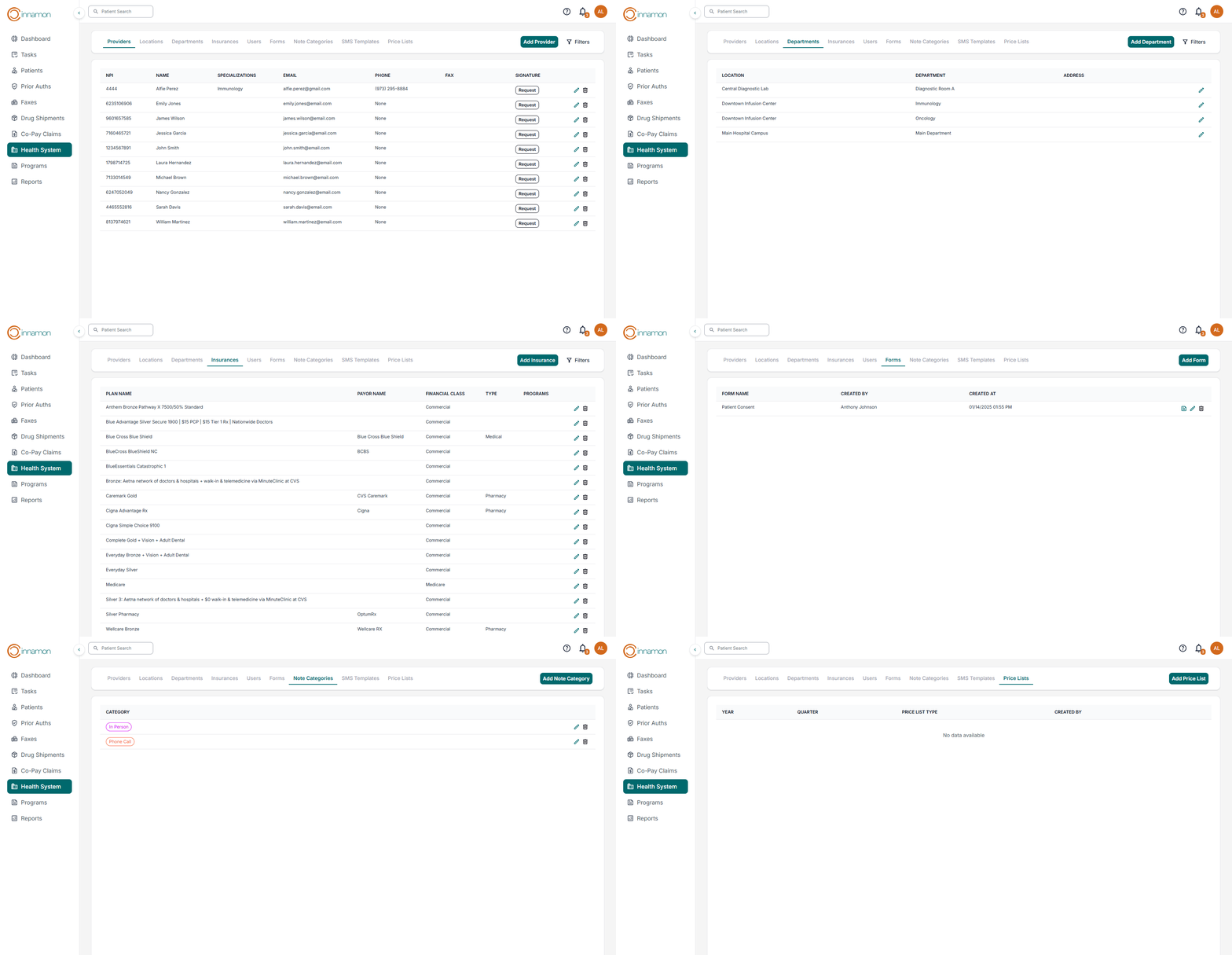
The Health System Dashboard gives users administrative control over several critical configuration areas. From this dashboard, users can manage providers, locations, departments, insurance plans, users, forms, note categories, SMS templates, and price lists.
For more in-depth guidance on each tab within the Health System Dashboard, please refer to Learning Cinnamon:Health System
Programs Dashboard:
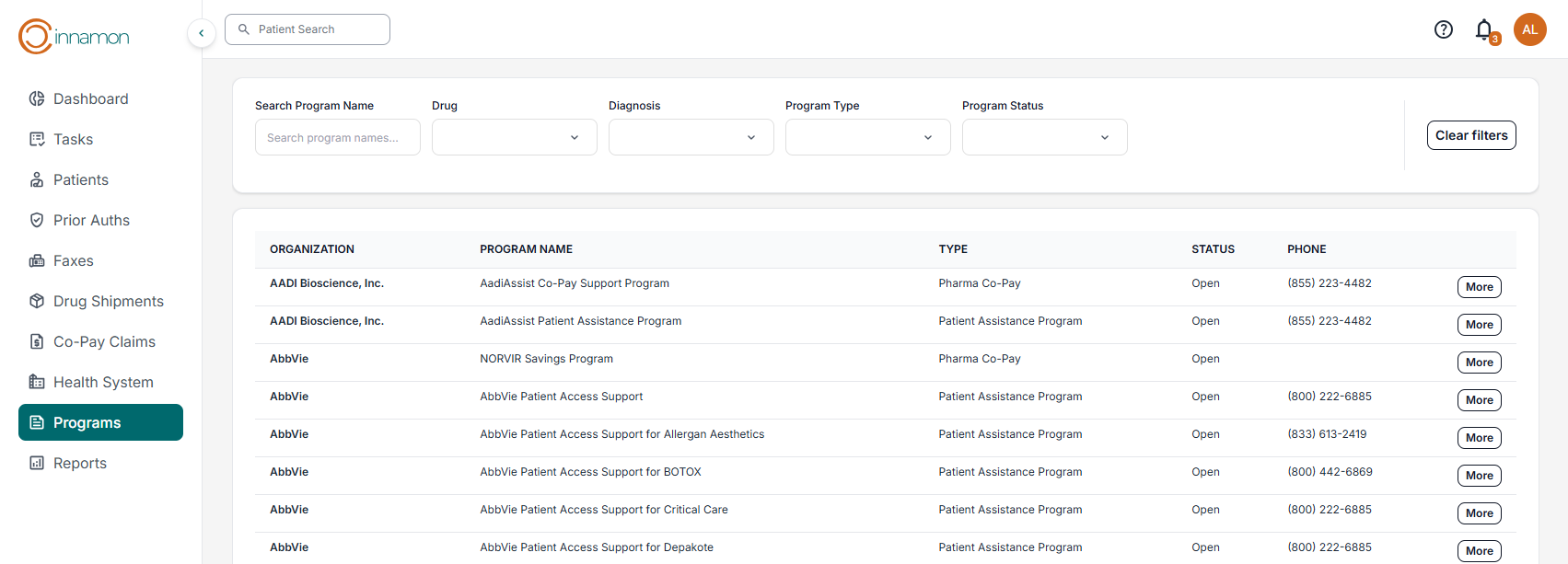
The Programs dashboard allows users to view all the programs in Cinnamon. Users can search for programs by name, drug, diagnosis, program type, and program status. For more details, check out this article about Programs: Learning Cinnamon:Programs
Reports Dashboard:
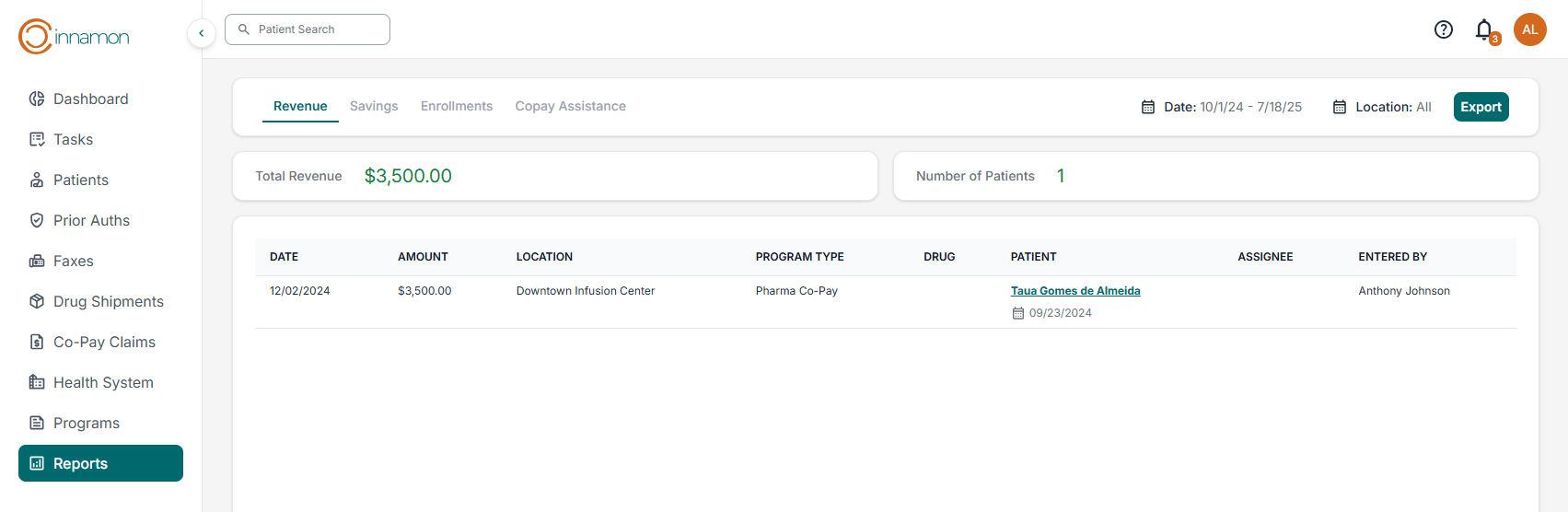
The Reports Dashboard provides access to a variety of key reports, including Revenue, Savings, Enrollments, and Co-Pay Assistance. Users can filter these reports by date and location to support targeted analysis. Additionally, all reports can be exported for further review or sharing.
For more information about the Reports dashboard, check out this article in our new user guide: Learning Cinnamon:Reports
That Covers It!
Congratulations! You’ve reached the end of the Cinnamon Navigation Guide.
If you still need assistance or are unable to find what you’re looking for, please don’t hesitate to contact our Support Team at support@cinnamon.health. We’re here to help and are always ready to assist with any questions or issues you may encounter.